Visual Studio 2022 Preview 3 was released a few days ago and is packed with quite a few nice updates now (including Preview 1 + 2 features).
The new release comes with quite some handy features and shows yet again that Microsoft is actually listening to the community! You can find all community suggestions that
made it into the release here! Working with API's got some huge quality-of-life upgrades but also some handy tools for developers working on integrations,
plugins, or mobile apps last but not least you now have a nice integrated markdown editor for those pesky readme files!
Let's have a look at some of what I think are the most useful ones in no specific order:
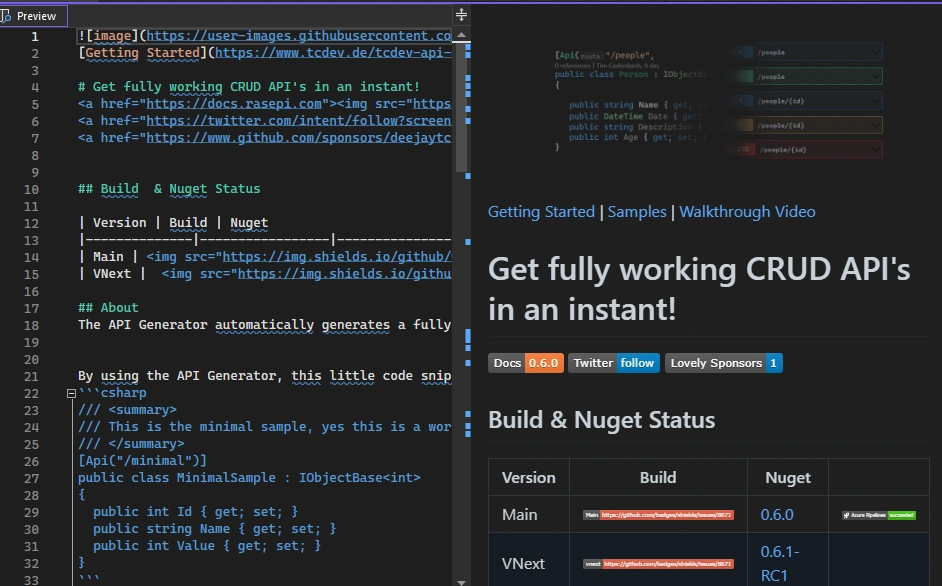
Integrated Markdown editor (Community suggestion!)
Despite being added in preview 2 the markdown editor is now available for everyone and always enabled per default. You can now easily and conveniently edit those
readme.md files or other pieces of documentation you might have, inside Visual Studio!
Nice feature on top - Spell checking works in markdown as well :)
DevTunnels
Those of you who have been working on any plugin, integration, MS Teams extension, or similar might know the need for a tunnel to your locally running Visual Studio.
In past I've been using NGROk for that which does its job quite well but is an external tool to use, you have to set it up, etc.
Now Visual Studio comes with an integrated way of achieving the same the so-called "DevTunnels".
After configuring a tunnel it starts and stops with your application and you don't have to care about that. It even comes with inbuilt authentication!
Let's have closer look.
After enabling Developer Tunnels in the preview options you'll find a new entry in the context menu below:
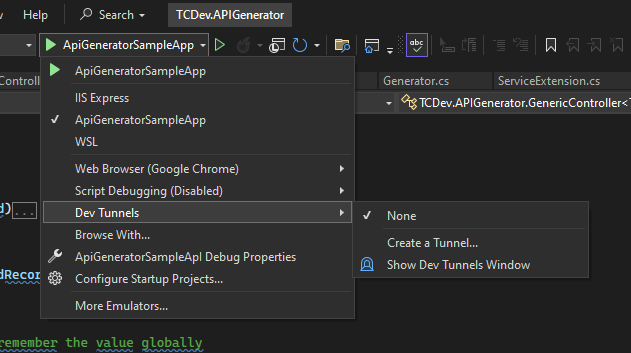
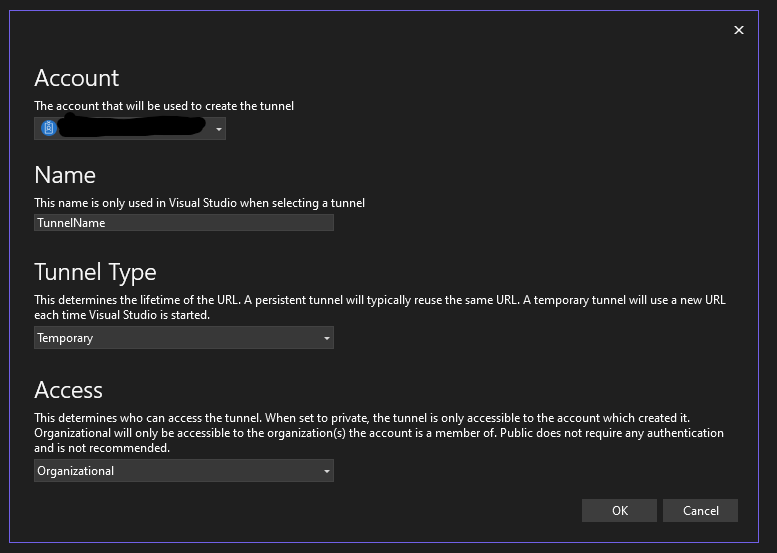
From here you can manage your Tunnels easily. Adding a new tunnel is quite simple, you can give it a name for
yourself to recognize it, you can configure authentication options and persistence. Based on the official preview docs the
persistent URL should stay for the lifetime of the tunnel but we have not tried that yet.
The "Access" setting is also quite handy, you can set it to public which is not recommended, you can also set it to private which
only allows access for yourself and you can set it to organizational which allows anyone who's in your tenant to access it.
Organizational however does only work with an M365 account and does not work with Github.
After setting up the tunnel you get a new windows showing the current state, this also gives you the URLS that have been generated, you can only
remove the tunnel here. Everything else is tied to your project. When you start the project the tunnel is automatically started as well, no manual steps
involved!
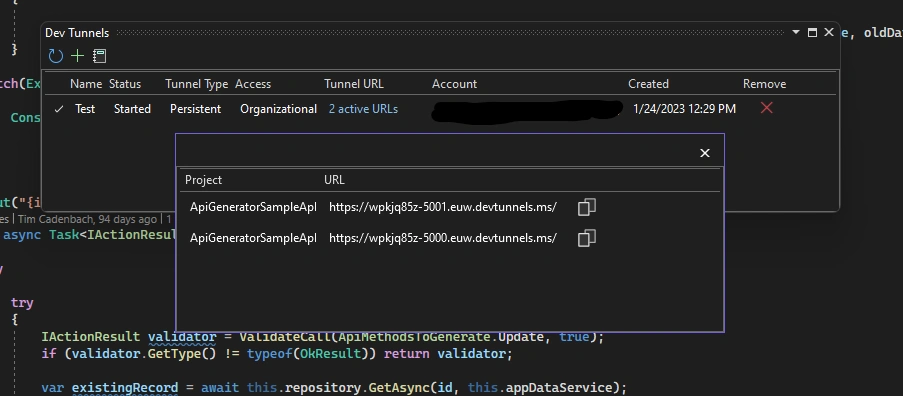
For me this is a huge game changer as I no longer have to deal with Ngrok, make sure its started, etc and it also covers securing your work on top. Nicely done!
Colorized Tabs (RegEx based!)
One of the new features I like the most as it really helps me get some more structure in my work is the colorized tabs feature. It is not completely new but got quite an update.
You can now colorize (and group) tabs based on regex! This allows you for example to give all your controllers a specific color or separate model from a controller, JS from C# files, etc
etc it's really powerful and up to you! Another nice feature is, its configured in a .txt file means you can have different settings per repository you're working on!
Its simple to enable:
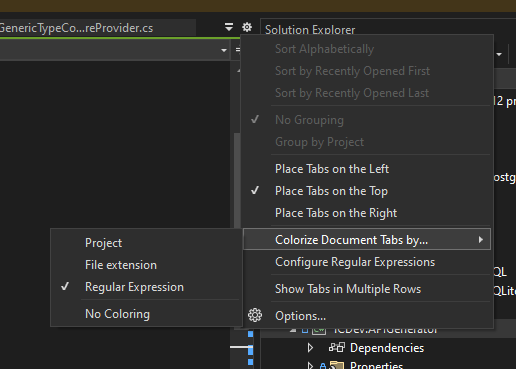
After enabling that there's a new "Configure Regex" option which leads to this:
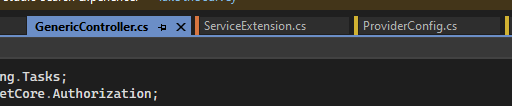
For myself, I separated extensions, controllers, and middleware as that's what I'm constantly working on for my APIGenerator
^.*\\*Extension\.cs$
^.*\*Controller.cs$
^.*\*Middleware.cs$
ASP.NET Output in the integrated terminal (yay!)
When working with WebAPI etc you often had tons of console windows flying around, at least always one.
This was now changed as Visual Studio no longer opens a new console window but shows the
output of your app directly in the integrated terminal. When you have multiple projects, each will get its own terminal window and you can easily switch between them. 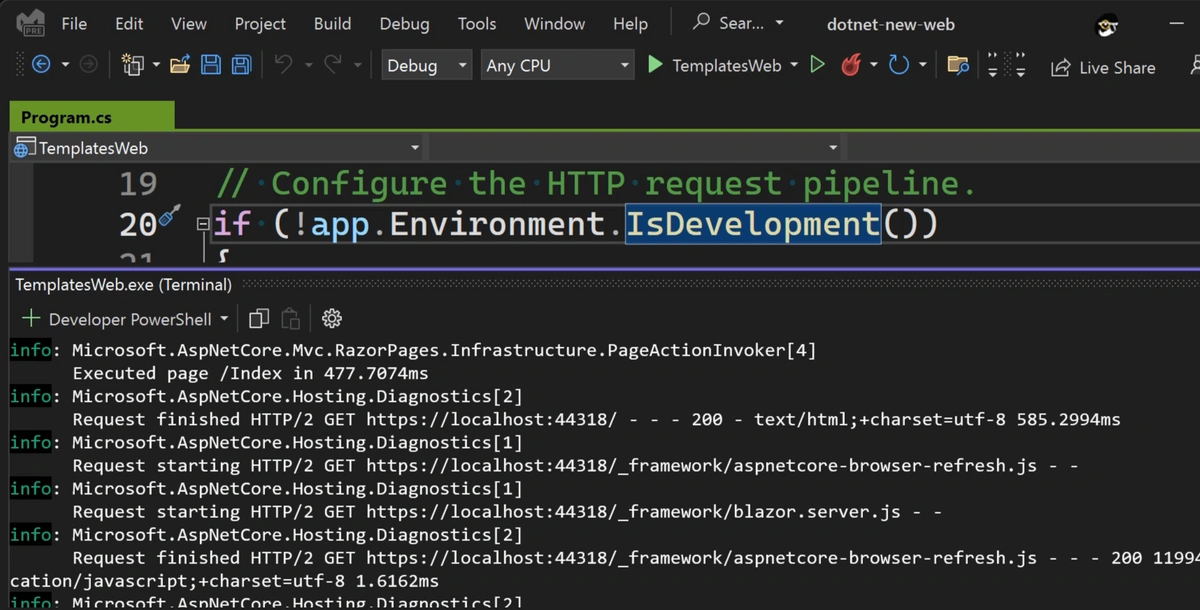
WebAPI Endpoint Explorer
One nice feature I didn't even know about as its not listed in the official preview docs is the new Endpoint Explorer. (Thanks Hassan for sharing!)
The new view parses your controllers at compile/coding time and lets you navigate all your endpoints directly from here.
It brings you to the corresponding functions by clicking on it and gives a nice overview.
I don't know what the plans are for this, to be useful it definitely needs to have a few more features (like testing those endpoints!)
But its a first start, if you combine that with the .HTTP files explained further below its a handy addition and shows what
might come in future so stay tuned!
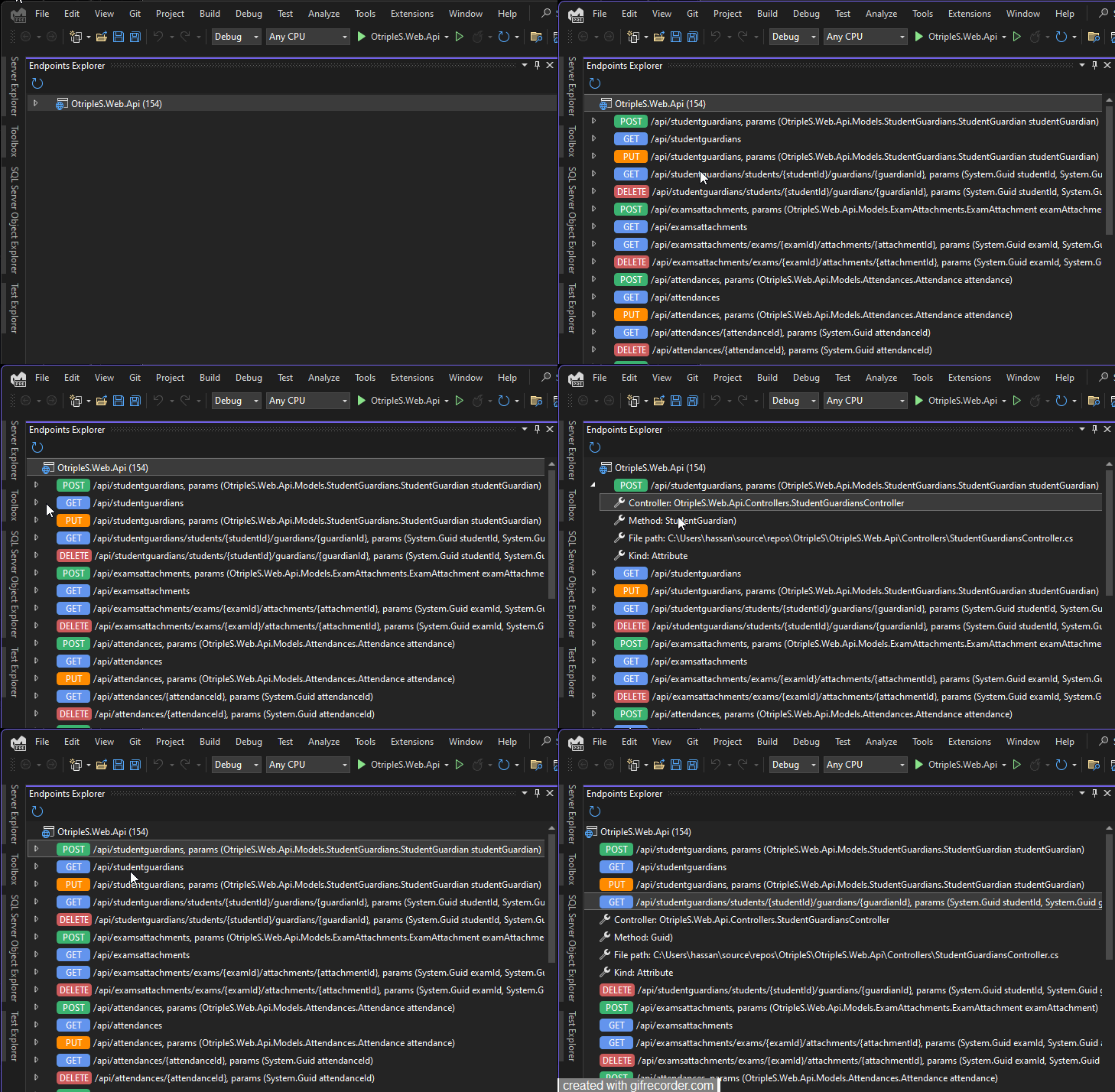
(Thanks Hassan Habib for the gif!)
.HTTP Files for easy REST call testing
Its been around for a while but not well known so I include that here. Visual Studio 22 now has a lovely feature to quickly test
your live endpoints or just try things.
If you create a .HTTP file you can perform API calls directly from that file as seen in the gif below
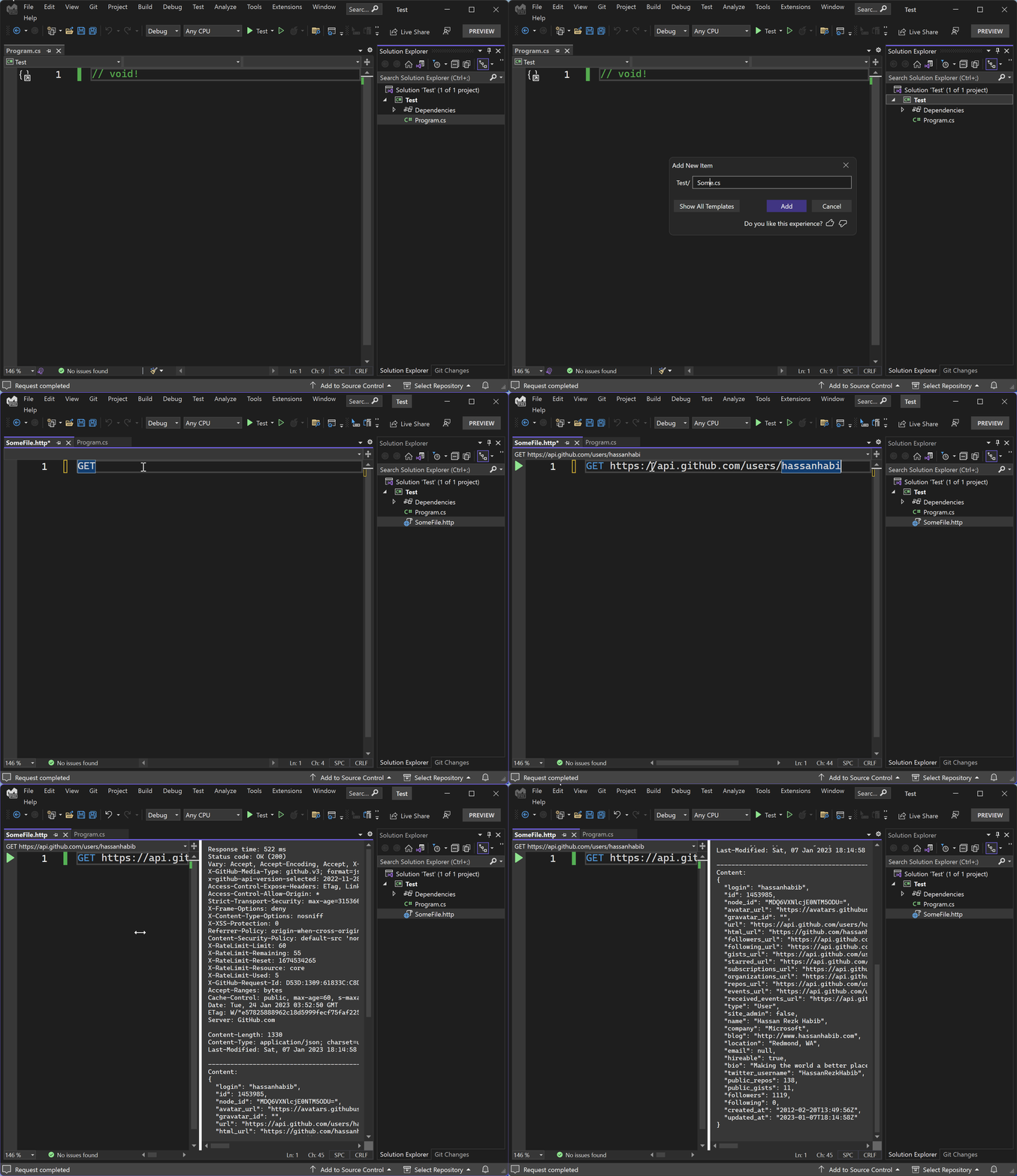
(Thanks Hassan Habib for the gif!)
The HTTP calls in here are really simple to use, just write
<METHOD> <Endpoint>
such as
GET https://api.github.com/xxxx
If you need more parameters or are testing a POST/PUT etc call you can add more parameters in the lines below:
POST https://api.github.com/xxxx
Content-Type: application/json
{
  "username": "testuser",
  "password": "testpassword"
}
A handy little feature that makes your life a bit easier. I'll cover more about that in a detail article soon.
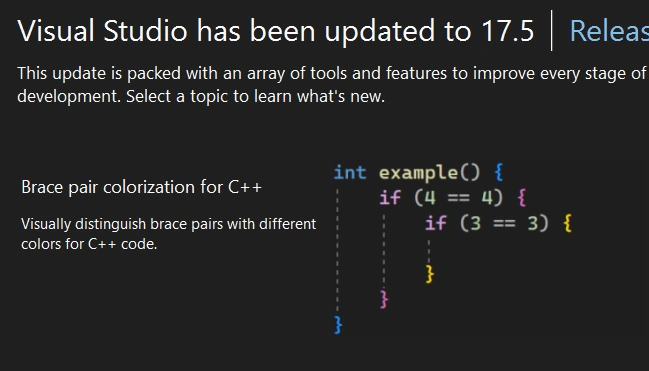
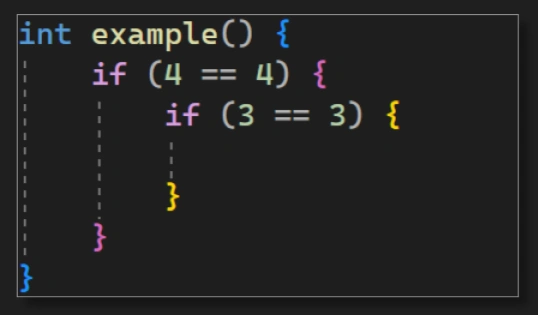
Colorized brace pairs is here! (C++ only for now)
Nothing too special for me personally but an honorary mention is the new colorization feature for braces,
various nesting levels and scopes can now have a different color making
code navigation is quite a bit simpler. I'll properly test that once its available for C# which is at least
announced.
All-In-One Search results
Visual Studio now lets you search for whatever you want in your code and in Visual Studio functionality as well! Simply type what you're looking for and you get all
matching results, search for something in your code and it navigates you right to it. If you search for a VS Window or option it takes you straight to the options dialog or
opens the window you've been asking for!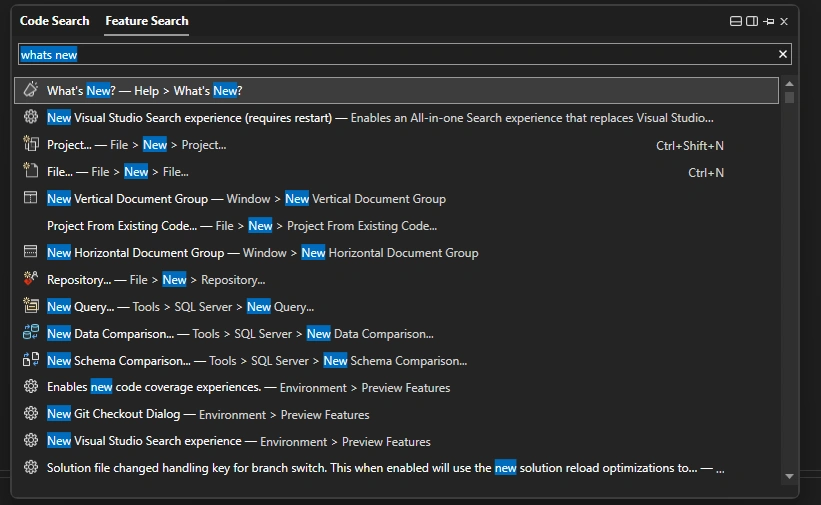
There's a ton more new features I did not cover yet such as added and improve spell checking (fix those comments!), improvements when working with container images, quick add new files or sticky scroll when editing code files. All I can say is, VS keeps getting better and better every day!
I'll cover some topics later in detail so stay tuned!